

The desktop
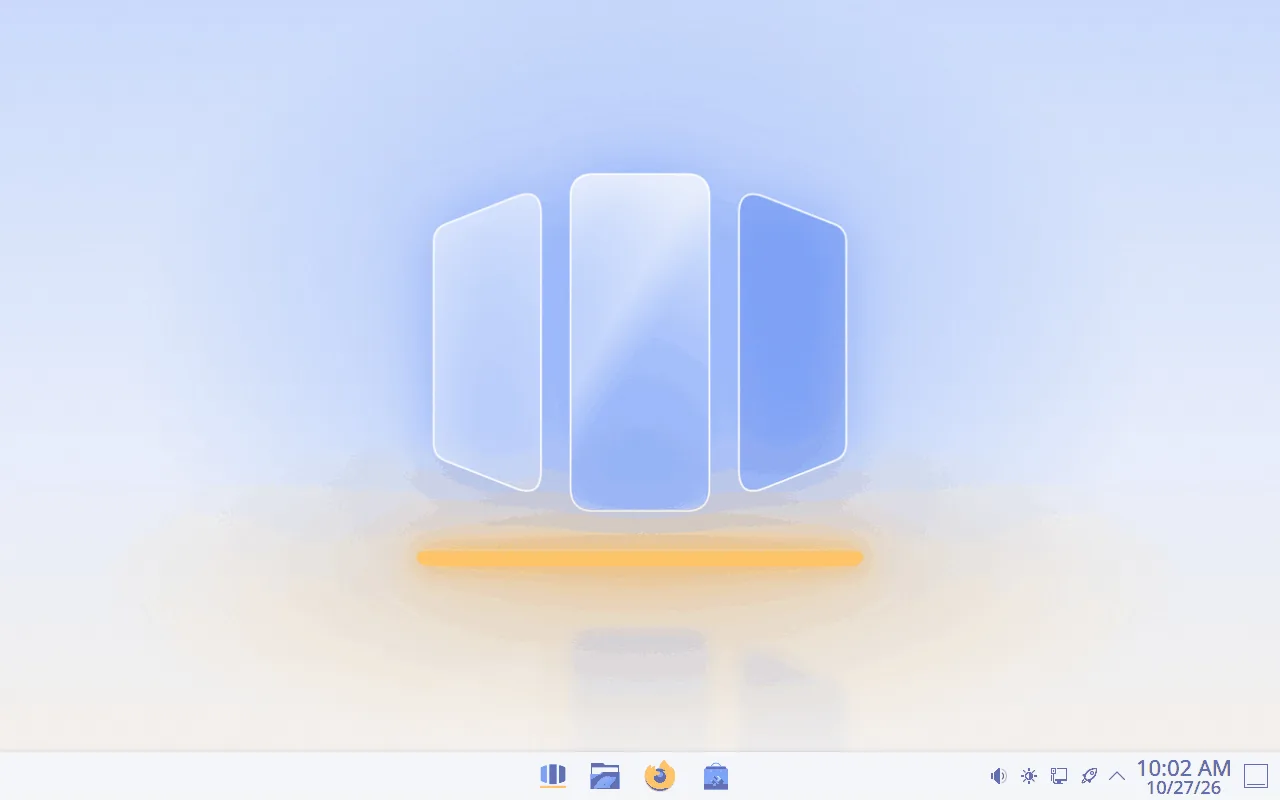
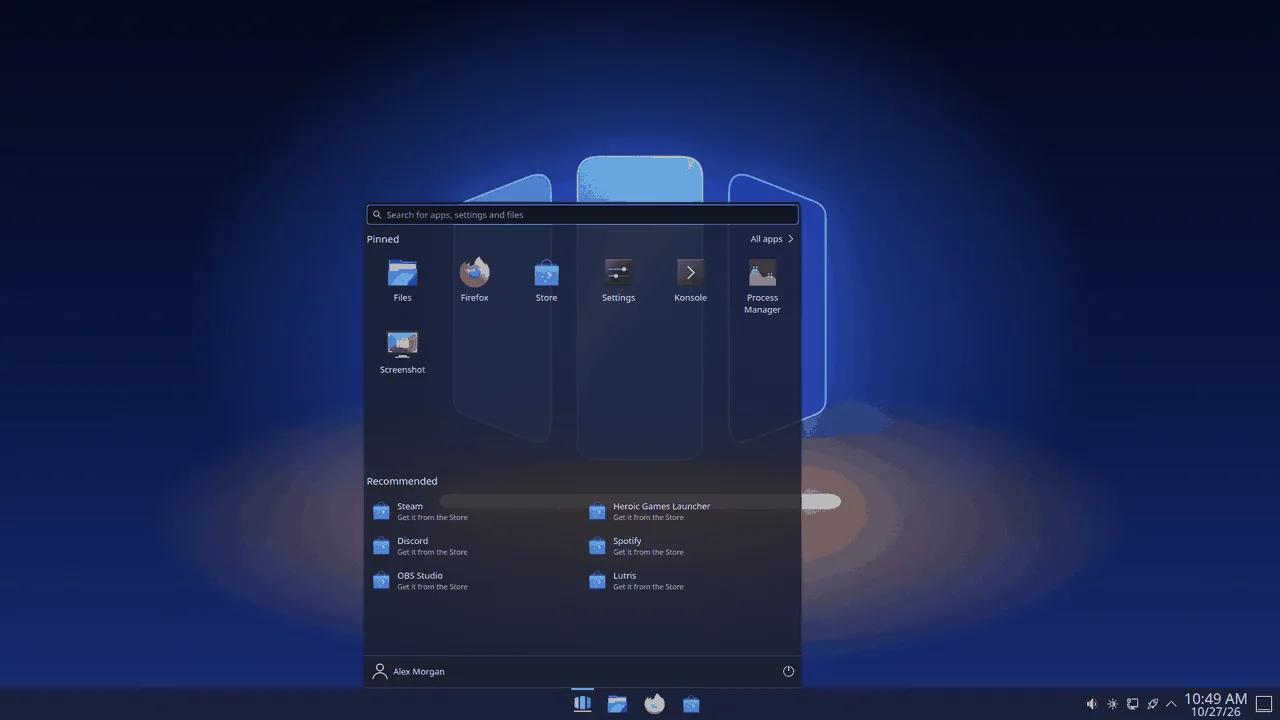
The OrielOS desktop works the way you expect if you're coming from Windows: a taskbar along the bottom, Start in the middle of it, and the system tray and clock on the right.
The taskbar
- Start is the first button in the middle. Click it, or press the Windows key. See Using Start.
- Your pinned apps sit beside it: Files, Firefox and the Store to begin with. Click one to open it, or to switch to it if it's already open. Apps you open that aren't pinned appear next to them while they run.
- To pin or unpin an app, right-click it on the taskbar and choose Pin to taskbar or Unpin from taskbar. You can also pin apps from Start.
- To move the taskbar's apps to the left, or hide the taskbar until you point at the bottom of the screen, open Settings > Personalisation > Taskbar, or right-click an empty part of the taskbar and choose Configure Taskbar….
The system tray
The right of the taskbar holds the system tray:
- Volume, network, Bluetooth and battery icons. Click one to change it there, or choose its settings for more.
- The OrielOS updates icon, which tells you when an update is ready and opens Settings > Update. See Updates and going back.
- The arrow shows the icons of apps running in the background, such as Discord or Steam.
- The clock and date. Click them for a calendar.
- The corner at the far right shows the desktop. Click it again, or press Windows + D, to bring your windows back.
Notifications appear above the system tray and stay in its notification list until you clear them.
Windows
Snap a window to one side with Windows + Left or Right arrow, or drag it to the edge of the screen.
Snap layouts: press Windows + Z to choose a half, a third or a quarter of the screen for the window you're using.
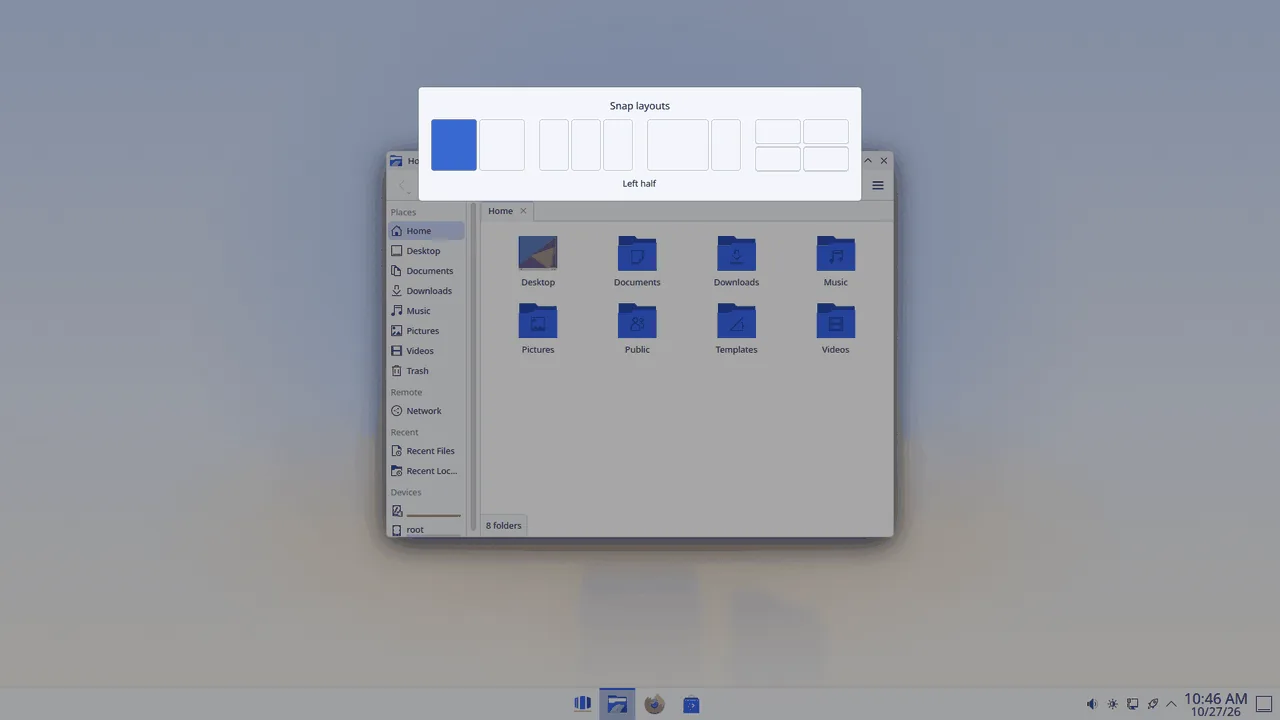
See every window with Windows + Tab, and switch between them with Alt + Tab.
Keyboard shortcuts lists them all, with how snap layouts work from the keyboard.
Files
Files is where your documents, downloads, pictures and drives are. Open it from the taskbar or with Windows + E. Your folders (Documents, Downloads, Pictures, Music and Videos) are in the panel on the left, with USB sticks and other drives below them when they're plugged in.
Taking a screenshot
- Windows + Shift + S or PrtSc: drag to choose part of the screen. Screenshot then shows it, ready to copy, save or draw on.
- Windows + PrtSc: saves the whole screen to Pictures > Screenshots.
- Alt + PrtSc: captures the window you're using.
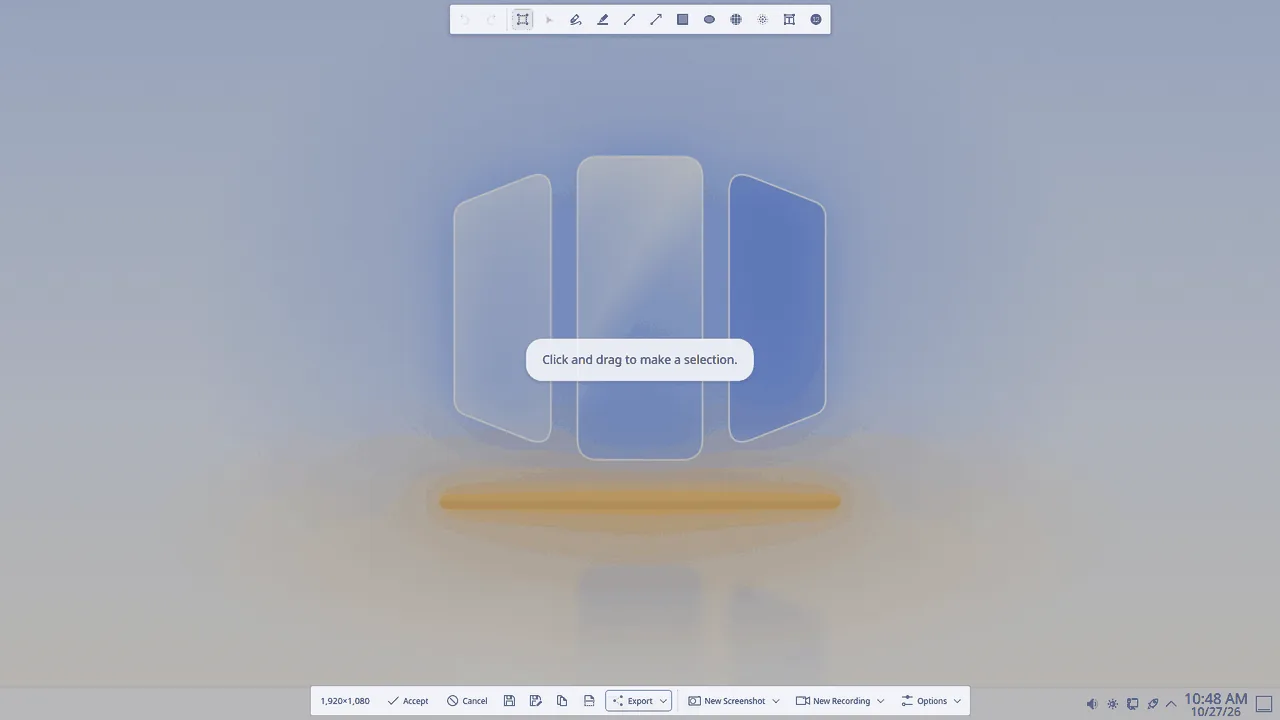
Screenshot is also in Start, under that name.
Process Manager
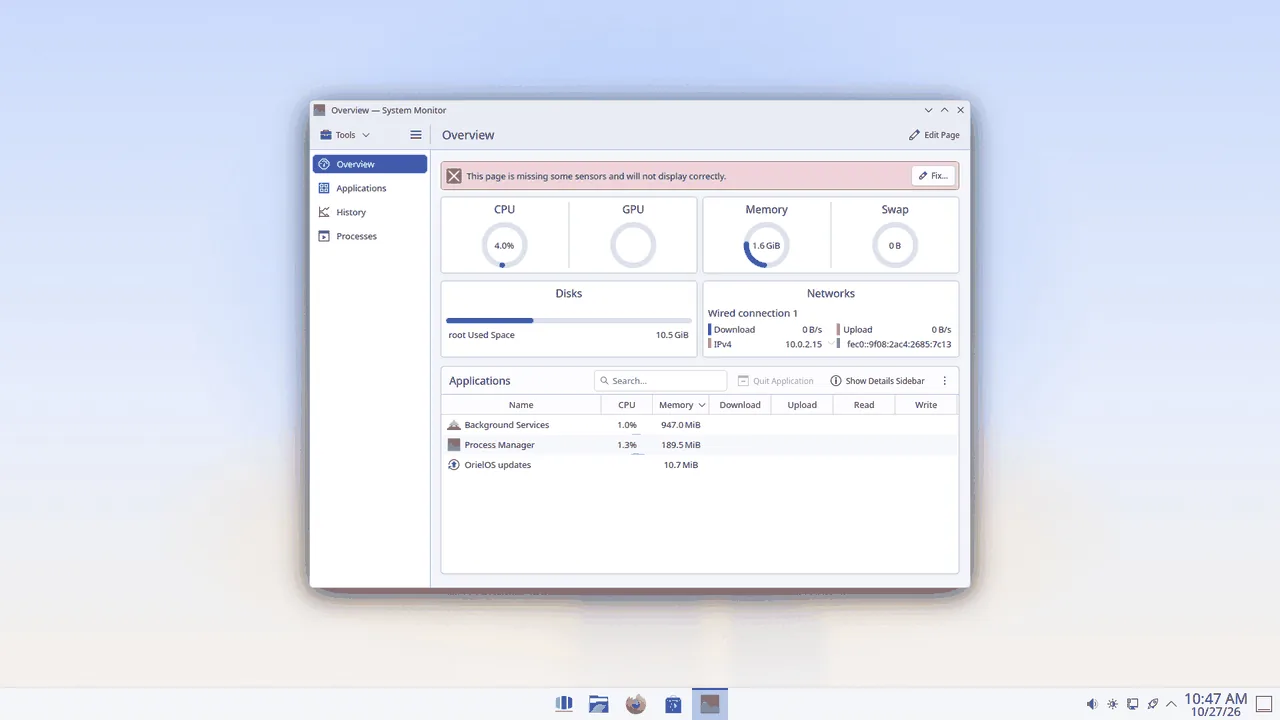
When an app stops responding, press Ctrl + Shift + Esc to open Process Manager. It shows what's running and how much of the processor, memory, disk and network each app uses. Select the app and choose End process to close it.
Light and dark
OrielOS has a light and a dark look. Switch between them in Settings > Personalisation > Themes, and choose the colour of highlights in Accent colour on the same page's list. Each look has its own wallpaper: Daybreak for light and Nightfall for dark.
Locking and signing out
Press Windows + L to lock the screen. Your account and the power button at the bottom of Start sign you out, lock, put the PC to sleep, restart it or shut it down.