

Settings
Settings is where you change how OrielOS works. Open it with Windows + I, or choose Settings in Start. If it's already open, Windows + I brings it to the front.
Finding a setting
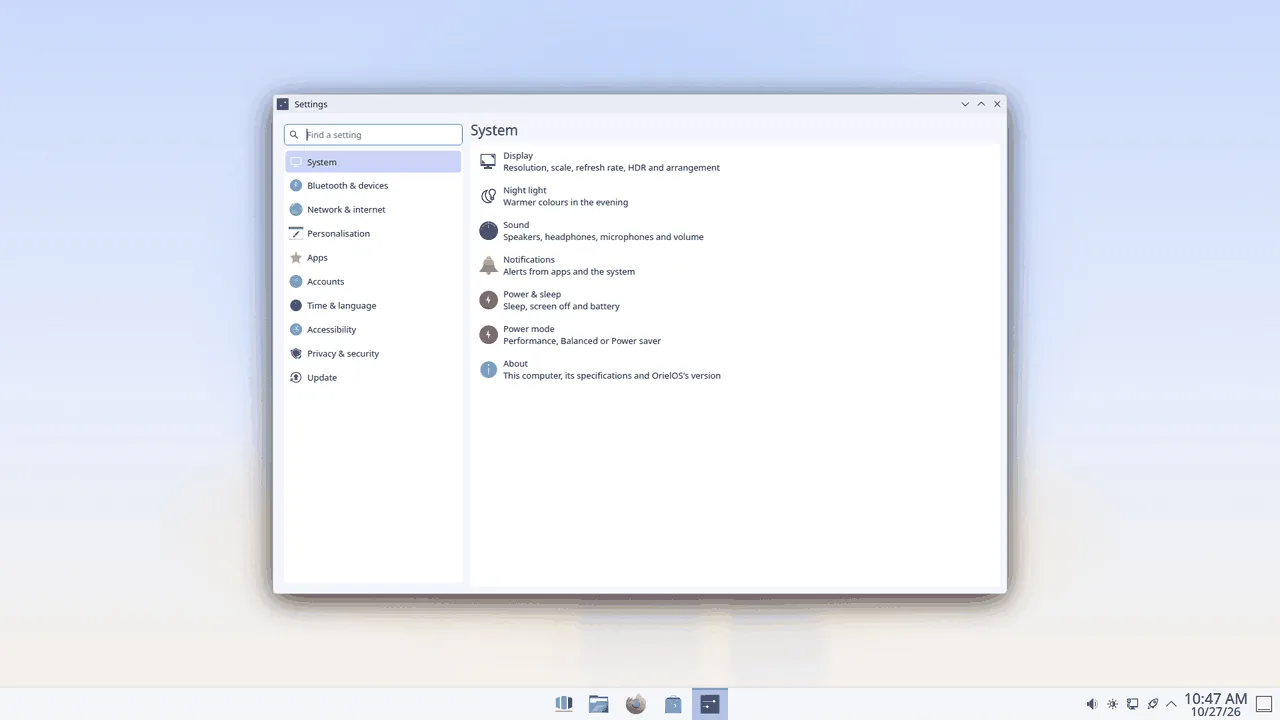
The categories on the left come in the order you know from Windows:
- System: Display, Night light, Sound, Notifications, Power & sleep, Power mode and About.
- Bluetooth & devices: Bluetooth, Mouse, Touchpad, Keyboard, Printers, Game controllers and Accessory apps.
- Network & internet: Wi-Fi, Ethernet, VPN and hotspot, and Proxy.
- Personalisation: Background, Themes (including dark mode), Accent colour, Lock screen, Start and Taskbar.
- Apps: Default apps and Startup.
- Accounts: Your info, with your password and other accounts.
- Time & language: Date & time, and Language & region.
- Accessibility: Screen reader and keyboard (sticky keys, slow keys, mouse keys and the visual bell), Zoom and colour filters, and On-screen keyboard.
- Privacy & security: Device security, Firewall, App permissions, Activity history, and Diagnostics & feedback.
- Update: OrielOS updates (see Updates).
Choose a category to see its pages, then a page to open it. To search instead, type in Find a setting at the top (or press Ctrl+F). Search knows the names of the pages and the words people use for them, including Windows' own, such as "wifi", "default apps", "resolution" or "windows update". Press Enter to open the best match.
You can also search from Start: type what you're looking for, such as "wifi" or "dark mode", and the setting opens in Settings. Settings that Settings doesn't have a page for yet, such as Fonts, still show up in Start's results and open in System Settings.
Applying changes
Some pages change things as soon as you choose them. Others show Apply and Reset at the bottom: Apply keeps your changes, and Reset puts back the settings you had. Defaults puts back OrielOS's own settings. If you leave a page, or close Settings, with changes you haven't applied, Settings asks whether to apply or discard them.
Some changes, such as the date and time, ask for an administrator's password.
Power mode
System > Power mode chooses between Performance, Balanced and Power saver, the same choice as in the battery and power icon in the system tray. OrielOS starts in Performance, on mains power and on battery; whichever mode you choose is kept, also after restarts and updates. If the computer holds Performance back, for example because it's too hot, the page says so.
Start and the taskbar
Personalisation > Start chooses what Start shows under Recommended: turn off Show recently added apps or Show recently opened files and Start stops listing them straight away.
Personalisation > Taskbar sets Taskbar alignment, Centre or Left, and Automatically hide the taskbar, which hides it until you move the pointer to the bottom of the screen. Changes apply at once. If you've rearranged the taskbar's widgets yourself, alignment can't be set here any more; the page says so.
Accent colour
Personalisation > Accent colour sets the colour of highlights, selected items and focus rings. Choose one of the colours and it applies straight away; Use the theme's colour goes back to the colour your theme came with. Light and dark mode are on the Themes page, and your accent stays when you switch between them.
Accessory apps
Gaming mice, keyboards and RGB lighting are set up with apps from the Store: Solaar for Logitech mice, keyboards and their receivers, Piper for gaming mice, and OpenRGB for lighting. Bluetooth & devices > Accessory apps lists them. If one is installed, Open starts it; if not, Get it from the Store opens its page in the Store, where you choose whether to install it. OrielOS already has the system parts these apps need to reach your devices.
Device security
Privacy & security > Device security checks that this PC meets what games with anti-cheat require: Secure Boot, a TPM 2.0 that recorded the start-up, a locked-down kernel, the kernel's BPF security module, no switching to another kernel while running, the IOMMU, and drivers signed only by Fedora or Universal Blue. Each one shows as met or not met, and anything not met says what to change, usually in the PC's firmware settings. Check again runs the checks once more. See Games with anti-cheat for what each one means.
From the update icon
Clicking the OrielOS updates icon in the system tray opens Settings on the Update page.