

OrielOS v0.1.9: its own desktop shell
v0.1.9 is the new stable version of OrielOS, and the biggest change since v0.0.7. It brings together the testing builds since then, including everything in Run this app and GE-Proton.
New to OrielOS? Download it and follow Install OrielOS. Already running it? There's nothing to download. The update arrives by itself, or open Settings → Update and choose Check for updates.
Its own shell
The taskbar, Start and lock screen now run in OrielOS's own shell. It'll take over more of the desktop in coming versions. Your pinned apps and wallpaper carry over the first time it starts, and going back to the previous version brings your old desktop back as you left it.
- Start opens in the middle of the screen, with pages of pinned apps, a More page for Recommended, and Downloads, Files and Settings by the power button. Pinned apps can be dragged around, and dropping one on another makes a folder.
- Search and Task View sit next to Start. Windows + S opens Start ready to search, with your recent searches and most used apps.
- Quick Settings has tiles for Wi-Fi, Bluetooth, airplane mode, energy saver, night light and accessibility, plus brightness, volume and what's playing.
- The clock opens your notifications over the month's calendar, with Do not disturb and a focus timer.
- The hidden icons open in a small pane above the arrow. Drag one to the taskbar to keep it there.
Windows and shortcuts
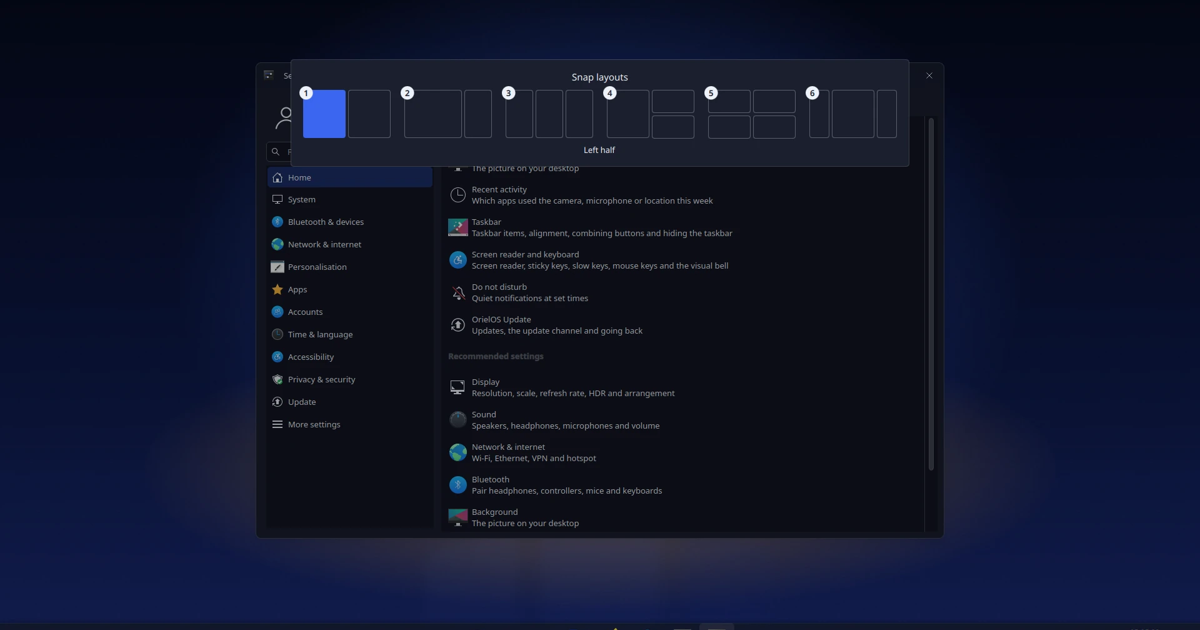
Windows have new frames with rounded corners and a soft shadow. Rest the pointer on maximise, or press Windows + Z, for six snap layouts, or drag a window to the top of the screen and drop it into one. Windows snapped side by side share an edge, so dragging the border resizes both.
Alt + Tab shows thumbnails of your windows. Windows + X opens the quick links menu, Windows + P picks how your screens are used, Windows + . opens an emoji panel, and Ctrl + Alt + Del gives you Lock, Switch user, Sign out and System Monitor.
Signing in
The lock screen shows a big clock and the date, plus notifications that came in while it was locked. Press a key and it slides away to the sign in screen. You can sign in with a PIN, set up in Settings → Accounts → Sign in options. OrielOS is now dark by default, with the Nightfall wallpaper.
Everything else
- Run this app: double click a Windows program and OrielOS shows the file and where it came from, asks first, then runs it through GE-Proton. Windows programs explains it.
- GE-Proton becomes Steam's default for Windows games, once, without touching a default you picked. Games and controllers has the details.
- Files has a new toolbar and opens folders in a Details view.
- Settings has new Storage, Fonts and Background pages, and Do not disturb can turn on at set hours.
- Two new guides, The desktop and Getting help, and a Status page listing what works, what doesn't yet and what's planned.
The full list is in the release notes.
Still early
OrielOS needs an NVIDIA RTX 20 series card or newer, and so far it's been verified on an RTX 4050 Laptop GPU. Known limitations lists what doesn't work, including games whose anti cheat doesn't allow Linux, no Hibernate, and no Microsoft 365 or Adobe apps.